Moodle pages and security
Read supported school pages without giving them access to your desktop app.
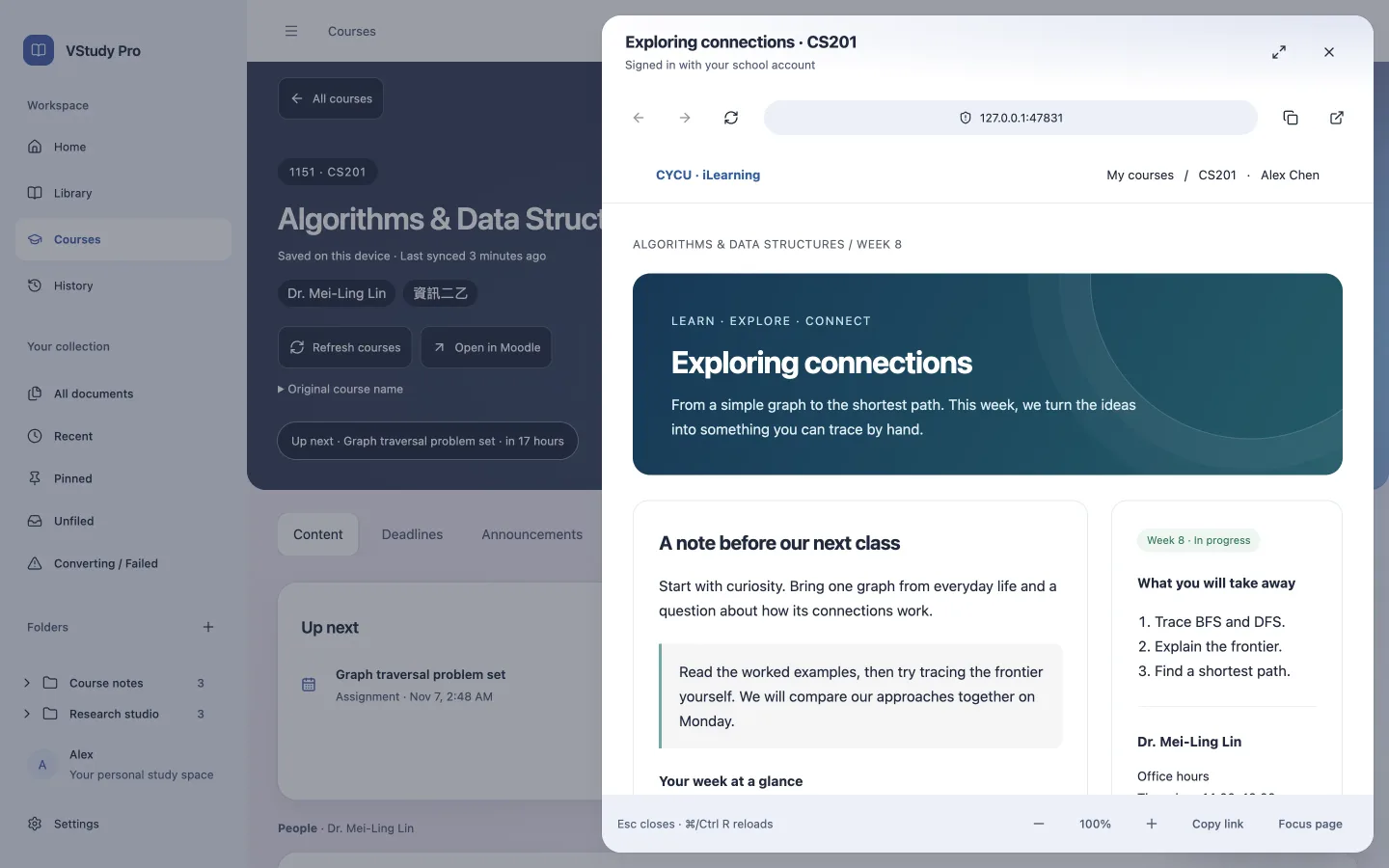
Open school content in place
Open supported announcements, modules, and other Moodle content through the course interface. In-app content views share the account’s authenticated session. For content the app cannot render directly, use Open in Moodle.
The page pane has its own navigation and recovery controls. Cmd/Ctrl+R reloads the focused Moodle pane. Escape closes it. If sign-in expires, reconnect the school account.
Keep account boundaries
Moodle pages run in sandboxed, context-isolated views without Node integration. Account-scoped in-memory partitions separate sessions. Tokens stay in main and do not appear in renderer URLs.
Allowed navigation, popups, downloads, and external protocols follow explicit policies. External browser and mail links need confirmation. Do not treat the embedded school page as a trusted command to the study agent.
Recover a page
If a page fails, retry through its recovery controls. Check your connection and the school website if it still fails. A school can require a full browser for some activities.
Do not submit sensitive or time-critical work solely on an AI summary. Confirm submission and grades on the school’s authoritative page. Use the school website when an activity needs a full browser.