Connect your school
Find your Moodle site, sign in with your school, and understand connection limits.
Find your Moodle site
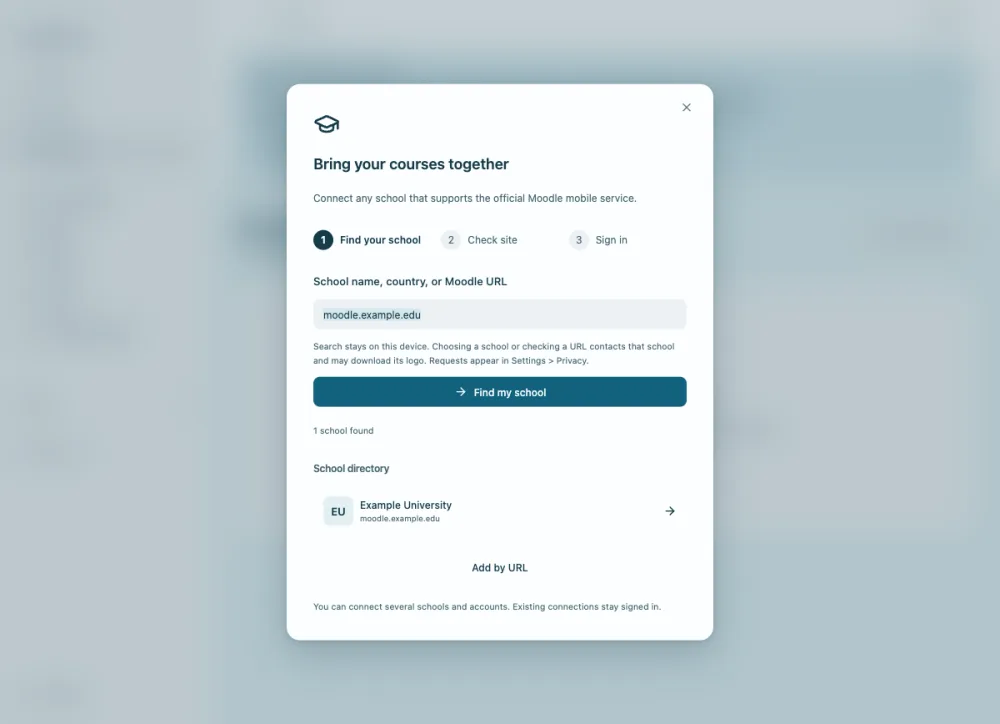
Open Courses, then Connect school. Search the bundled directory by name, abbreviation, country, or hostname. Searching the directory is local. Selecting a school starts a network check against that school.
If your school is absent, enter its public HTTPS Moodle URL. Pasted course links and Moodle installations in subdirectories are normalized. HTTP sites, local network addresses, non-default ports, and untrusted certificates are unsupported.
- Open Courses > Connect school.
- Choose the school or enter its Moodle URL.
- Review the detected site and availability before signing in.
Sign in through your school
VStudy checks the site’s public mobile configuration before authentication. Password sites use the school’s Moodle token endpoint. SSO sites open an isolated school sign-in window. Follow your school’s normal login and multi-factor steps there.
The main process verifies the callback and account identity. Tokens stay outside the app renderer. Never paste an SSO token into chat. QR credential exchange is not implemented. Use the school URL and ordinary sign-in instead.
School availability
VStudy Pro connects to Moodle schools through their mobile services. Your school must enable these services and allow a supported sign-in method. Public HTTPS with trusted certificates and Moodle 3.5 or later are required. Maintenance, school permissions, and activity plugins can limit what is available.
Use Moodle's registered-sites lookup to check whether your school uses Moodle. It lists public registrations by country. Private and unregistered sites are absent, so a missing school may still use Moodle. A listing does not verify mobile-service settings or VStudy Pro compatibility. Ask your school's Moodle administrator if you are unsure.
The built-in directory helps you find school sites. It does not certify compatibility, partnerships, or endorsements. You can also enter your school’s Moodle URL in Connect school.
First tested with CYCU in Taiwan means early testing, not confirmed full compatibility. Repository captures verify school discovery and a local Moodle-pane demo. They do not prove live school authentication or complete course-content support. The CYCU confirmation notes record failed content and activity calls and a pending confirmation run. Synthetic parser tests verify parser behavior, not the live site.
Do not bypass a school restriction or ignore a certificate error. Your school website remains the source of truth for submissions and grades.
Use more than one account
Each site root and remote user identity has separate tokens, courses, and sync state. You can connect multiple schools. Recent sites contain public site information, without credentials.
Reconnect an expired account with the same school identity. To use another identity while the expired account remains, disconnect that expired account first. A restored backup also requires school sign-in again.