Getting started
Install VStudy Pro and try your first reading without connecting an account.
Install on macOS or Windows
Apple silicon Mac and Windows x64 are the first release targets. Intel Mac and Windows ARM64 are planned until full conversion and native packaging checks pass. Full document conversion needs macOS 14+ on Apple silicon or macOS 13+ on Intel. Use Windows 10+ for x64 or Windows 11+ for ARM64; the ARM64 app runs x64 Python through Windows emulation. The app can launch on macOS 12 for Markdown and text. On Mac, choose Apple silicon unless About This Mac lists Intel. On Windows, check Settings > System > About > System type. ARM-based Windows and Intel Mac users should wait for their planned installer. There is no Linux installer.
The links below point to the latest published release. The repository is public. If an asset is absent, check Release notes and availability for published targets and verification results. A dry run is not a published release. AI, school sign-in, and fresh course content need internet access.
- Download your installer and SHA256SUMS.txt from the same release on the Download page.
- Verify your file against its entry in the checksum list. On Mac, use shasum -a 256 followed by the filename. On Windows PowerShell, use Get-FileHash -Algorithm SHA256 followed by the filename. Compare the entire hash. Checksums detect changed bytes, not publisher identity.
- Mac: open the DMG and drag VStudy Pro into Applications. Eject the image and open the installed app.
- Windows: run the EXE to install for the current user. Stop if this per-user installer unexpectedly asks for administrator access.
Open a trusted build
Without signing credentials, Mac builds have an ad-hoc signature without Developer ID or notarization. Windows builds are unsigned. Verify the download and trust its source before accepting an exception. Do not disable Gatekeeper or SmartScreen globally.
Signed and notarized Mac releases normally use the usual first-open confirmation. Signed Windows releases show the verified publisher, but SmartScreen can still warn while reputation develops. Check the actual signing status in the release notes.
- Mac: if blocked, try opening once, then open System Settings > Privacy & Security. Choose Open Anyway only if offered and you trust the verified app. Authenticate if requested.
- Windows: if SmartScreen warns, choose More info > Run anyway only after verification and only if offered. Managed devices may prohibit this. Contact your administrator rather than disabling protection.
Unlock saved credentials when needed
Saved API keys use Electron safeStorage. Mac uses the login Keychain and can ask for access, especially after an ad-hoc rebuild. Windows uses DPAPI tied to the current Windows user; there is no Mac-style Keychain prompt.
Both systems wait for your explicit unlock after restart before decrypting saved keys. Opening the main window does not unlock them. Retry or use a key for the session without saving. Portable backups exclude credentials.
Update or uninstall
Updates are manual. Export a backup in Settings > Storage, quit the app, and verify the new installer. Mac users replace the app in Applications. Windows users run the new installer for the same user. Preserve the data folder to retain coursework. Database downgrades are unsupported. Auto-update requires a later change after signing and Mac notarization are verified.
To erase data, use Settings > Privacy > Delete all data and confirm DELETE before uninstalling. Then move the Mac app to Trash, or uninstall in Windows Settings > Apps > Installed apps. Removing only the application leaves local data.
Try the sample document
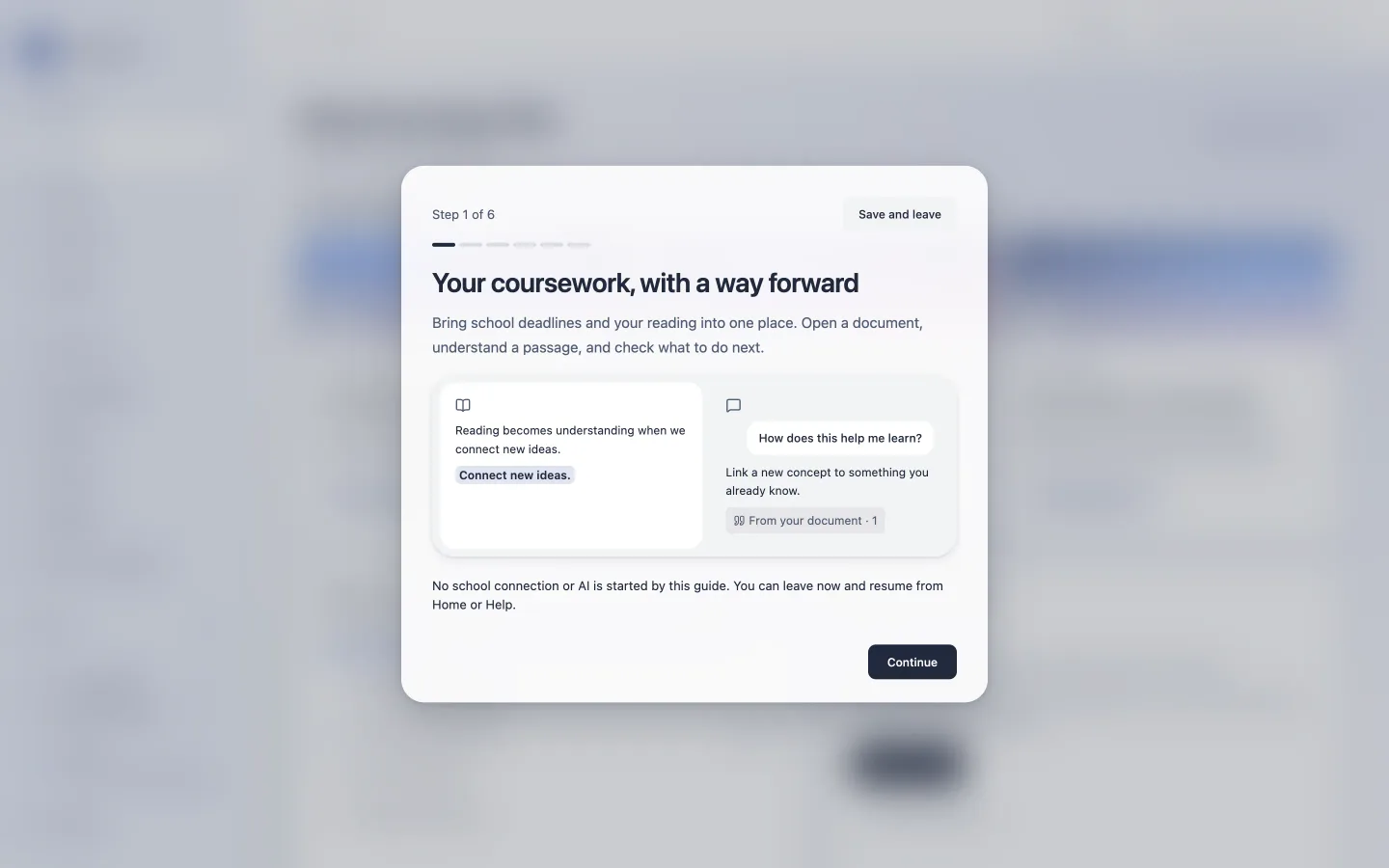
First-run onboarding lets you choose English, Traditional Chinese, or Japanese. Choose a light or dark theme, then start with the included sample. You can connect a school or set up an AI provider later.
Open the sample in the reader. Select a sentence to see the reading workflow. AI replies require your own enabled provider. The sample document itself can be read without AI.
Add only what you need
Connect your school from Courses to bring in Moodle coursework. Use Library to import your own documents. When you want AI, choose AI tools in the sidebar or Set up AI during onboarding, in the Reader, or in Settings > Providers.
Choose a tool and allow it individually. Follow Install, Sign in, and Test. When VStudy cannot independently verify a download, Install another way shows the official command for your own terminal. Review each action before running it. On macOS, a built-in terminal shows sign-in links and codes. You can also use your own terminal. VStudy includes no AI subscription, and the test may count toward your provider usage.
Conversion of formats such as PDF needs a Python conversion environment. The first conversion requests permission before downloading packages. Markdown and text work without that setup. Settings > Privacy has an Offline mode for the converter.
Codex is disabled on Windows because a verified equivalent of its macOS kernel sandbox is unavailable. API providers remain available. Mac additionally blocks converter networking with an OS sandbox. Windows has no equivalent kernel network deny; offline mode and Python socket interception are not an OS security boundary.